
Motion accessibility refers to how moving content on your website, animations, auto-playing carousels, parallax scrolling, and video, affects visitors who have vestibular disorders, seizure disorders, attention-related conditions, or who simply find constant movement distracting. Under the Web Content Accessibility Guidelines (WCAG), any content that moves, blinks, or scrolls automatically for more than five seconds must give the visitor a way to pause, stop, or hide it.
Motion can make a website feel modern and engaging, but it's also one of the more overlooked accessibility issues, because it's easy to add an animation or an auto-playing background video without realizing it creates a real barrier for some visitors. This article covers why motion matters, what the accessibility guidelines actually require, and how to use video, including background video, in a way that stays both effective and accessible.

What counts as “motion” on a website?
Motion is any content on a page that moves, changes, or animates on its own, or in response to something a visitor does. It's a broad category, and most websites use several types of it without thinking of them as “motion” specifically. Some common examples:
Some of these, like a loading spinner that disappears in a second, are brief and low-risk. Others, like an auto-playing carousel or a looping background video, run continuously and are exactly the kind of motion WCAG expects you to give visitors control over. The rest of this article focuses on that second group: motion that starts on its own and keeps going.
Why does motion matter for accessibility?
Movement on a screen isn't neutral. For a portion of your visitors, it's uncomfortable, distracting, or in rare cases medically triggering.
- Vestibular disorders. Conditions that affect balance and spatial orientation can make parallax scrolling, zooming transitions, and spinning or sliding animations cause real dizziness, nausea, or headaches.
- Seizure disorders. Certain flashing or strobing effects can trigger seizures in people with photosensitive epilepsy. WCAG sets a hard limit on how much flashing content is allowed to help prevent this.
- Attention and cognitive conditions. For visitors with ADHD, autism, or other cognitive differences, constant movement in the background of a page (auto-scrolling text, looping animations) can make it genuinely difficult to focus on the actual content.
- General motion sensitivity. Even without a diagnosed condition, many people find auto-playing carousels and busy animations distracting or mildly nauseating, and may simply leave the page.
- Legal exposure. Uncontrolled motion can contribute to WCAG accessibility failures and may appear in ADA accessibility audits and complaints, alongside issues such as color contrast.
- Performance and data cost. Auto-playing video and heavy animations can slow page load times and consume additional mobile data and battery, affecting every visitor—not just those with disabilities.
The goal isn't to remove all motion from your website. It's to make sure visitors have control over it.
What do the accessibility guidelines actually require?
Motion is covered by a few specific WCAG success criteria. You don't need to memorize the technical names, but it helps to know what they require in plain terms.
| Guideline | What it requires | Level |
| Pause, Stop, Hide (2.2.2) | Any moving, blinking, or auto-scrolling content that starts automatically, lasts more than 5 seconds, and appears alongside other content must have a visible way to pause, stop, or hide it. | A (baseline) |
| Three Flashes or Below (2.3.1) | Content must not flash more than three times per second, to avoid triggering photosensitive seizures. | A (baseline) |
| Animation from Interactions (2.3.3) | Motion triggered by scrolling or clicking (like parallax effects) should be possible to turn off, unless the animation is essential to the function. | AAA (enhanced) |
Level A is the minimum floor almost every accessibility standard and legal expectation is built on. If a carousel, background animation, or auto-playing element on your site runs longer than five seconds with no way to stop it, that's a Level A failure, the same tier of issue as missing alt text.
A setting most sites ignore: reduced motion
Most phones, tablets, and computers have a “reduce motion” setting visitors can turn on in their operating system if animation causes discomfort. Modern websites can detect this preference in their code and automatically tone down or disable non-essential animation for anyone who has it turned on. It's a simple technical addition that respects a choice the visitor has already made about their own device.
Common motion mistakes we see on business websites
- Auto-playing image carousels or sliders with no visible pause button, often cycling through several messages before a visitor has time to read the first one.
- Parallax scrolling effects where background and foreground images move at different speeds as the visitor scrolls, a common trigger for vestibular discomfort.
- Animated hero sections with constant motion behind the main headline, competing with the text for attention.
- Infinite auto-scrolling testimonials or logo strips that never stop moving and can't be paused.
- “Fade in on scroll” effects applied to every section, so the page feels like it's constantly animating as the visitor reads down it.
- Hover animations that hide essential information until a visitor moves their mouse over an element, which doesn't work at all for keyboard or touchscreen users.
Why does motion matter for accessibility?
Video is one of the most common sources of motion on a website, and one of the most likely to be added without an accessibility review, especially background video used purely for visual atmosphere.
Background videos
A muted video looping behind a hero section is a popular design choice, and it can look great, but it carries the same Pause, Stop, Hide requirement as any other moving content. If it runs longer than five seconds (nearly all background video loops do), visitors need a visible way to stop it.
- Mute autoplay videos by default. Background videos should never autoplay with sound, as unexpected audio can be disruptive and may interfere with screen readers or other assistive technologies.
- Provide a visible pause or stop control. Give visitors an easy-to-find control to pause or stop the video. The control should also be accessible using the keyboard.
- Provide a static image fallback. Offer a still image as an alternative for visitors who prefer reduced motion, have autoplay disabled, or are using a slower connection.
- Keep background videos short and subtle. Video should support the content rather than compete with the headline or call to action. Use short, low-motion loops that are less distracting and more accessible.
Videos with dialogue, narration, or important audio
Any video that conveys information through speech needs captions, and ideally a text transcript, so the content is available to visitors who are deaf or hard of hearing, and to anyone watching with the sound off. This applies to product demos, testimonial videos, and explainer videos just as much as it applies to background video.
Controlling start and stop the right way
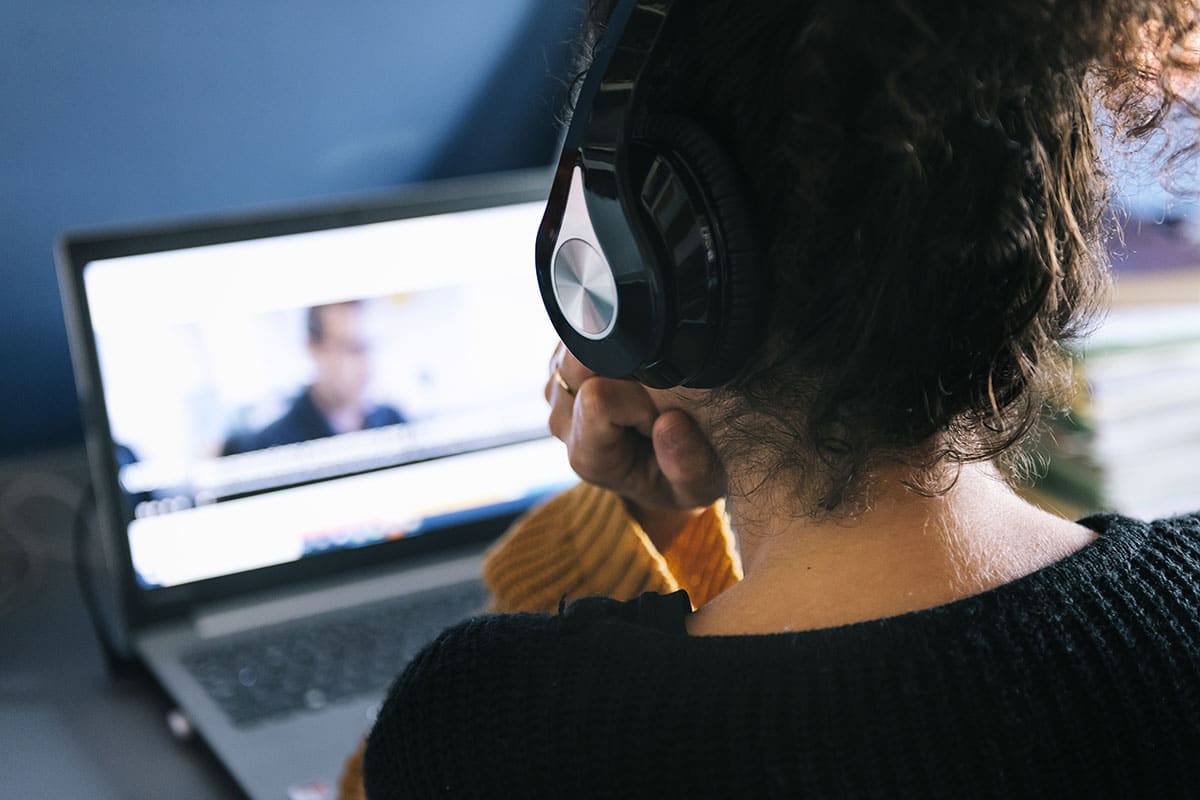
“Controls” means more than a play button. A fully accessible video player lets a visitor pause it, and once paused, the controls should stay visible or easy to find again rather than disappearing until the video is playing. If you're using a third-party video embed (YouTube, Vimeo, or a page builder's native player), check that its default controls are visible and keyboard-operable rather than assuming they are.
A quick way to think about it: if a visitor can't easily read your page, listen with headphones off, or navigate with a keyboard because a video or animation is running, the motion has become a barrier instead of a feature. Control is the fix, not removal.
Is your website's motion a problem? Questions to ask
If you answered yes to any of these, it's worth reviewing those specific elements first. Motion issues are usually isolated to a handful of components (a hero slider, a background video, a scroll effect) rather than the entire site, which makes them straightforward to fix once identified.
How motion accessibility fits into the bigger picture
Controlling motion well helps with more than compliance:
- A calmer, more readable experience for every visitor, not just those with a diagnosed condition.
- Faster page load times and lower data usage, since heavy animations and autoplay videos can significantly impact performance.
- Lower legal risk by supporting ADA and WCAG-based accessibility requirements.
- A clearer path to your call to action, since visitors are not distracted by moving backgrounds while reading your message.
- Better support for visitors using mobile data plans or older devices, where autoplay video can contribute to slower load times.
How should you handle motion on your website?
You don't need to eliminate animation or video to be accessible. You need a way to control it. Here's what to look for, regardless of which platform your website is built on:
The right fix often depends on what platform and tools your site is built with, since the available controls vary. If you're not sure what your current website supports, that's a reasonable question to bring to whoever manages your site or hosting.
Frequently Asked Questions
About Motion and Movement in Your Website
Ready to take the next step?
Not sure how your site's animation, sliders, or video hold up? An accessibility audit gives you a clear, prioritized report of exactly what's working, what's not, and how to fix it, written in plain English. We'll flag any auto-playing content, animation, or video that needs a pause control alongside the rest of your results.
Request an accessibility audit or browse the accessibility hub at rvtechsolutions.com/website-accessibility-hub.
Looking for the companion piece on this topic? Read our article on color contrast and ADA accessibility at rvtechsolutions.com/what-is-color-contrast-and-why-does-it-matter-for-ada-accessibility.

Ready to take the
next step?
Request an accessibility audit or browse the accessibility hub at rvtechsolutions.